Free preview · Pro to save effects · iPhone and Android
Change your voice with voice filters
To apply a voice filter in TapeSail, open a recording in Edit, choose Voice and select a preset. Play Edited to hear it and Original to compare. Trying effects is free; saving a copy with a voice filter requires TapeSail Pro, a one-time purchase.
By TapeSail · Updated
Watch: compare Original and Robot in TapeSail
This Android demo compares the same recording before and after the Robot voice filter, then saves a filtered WAV copy while keeping the original. Previewing filters is free; saving voice effects requires TapeSail Pro.
Playing loads YouTube and shares data with Google. Privacy details.
Watch the demo on YouTubeHow to apply a voice filter
Open the recording in Edit
Tap a saved recording in the library to expand it, then tap Edit. Trim the recording first if you only want to keep one passage.
Select a voice preset
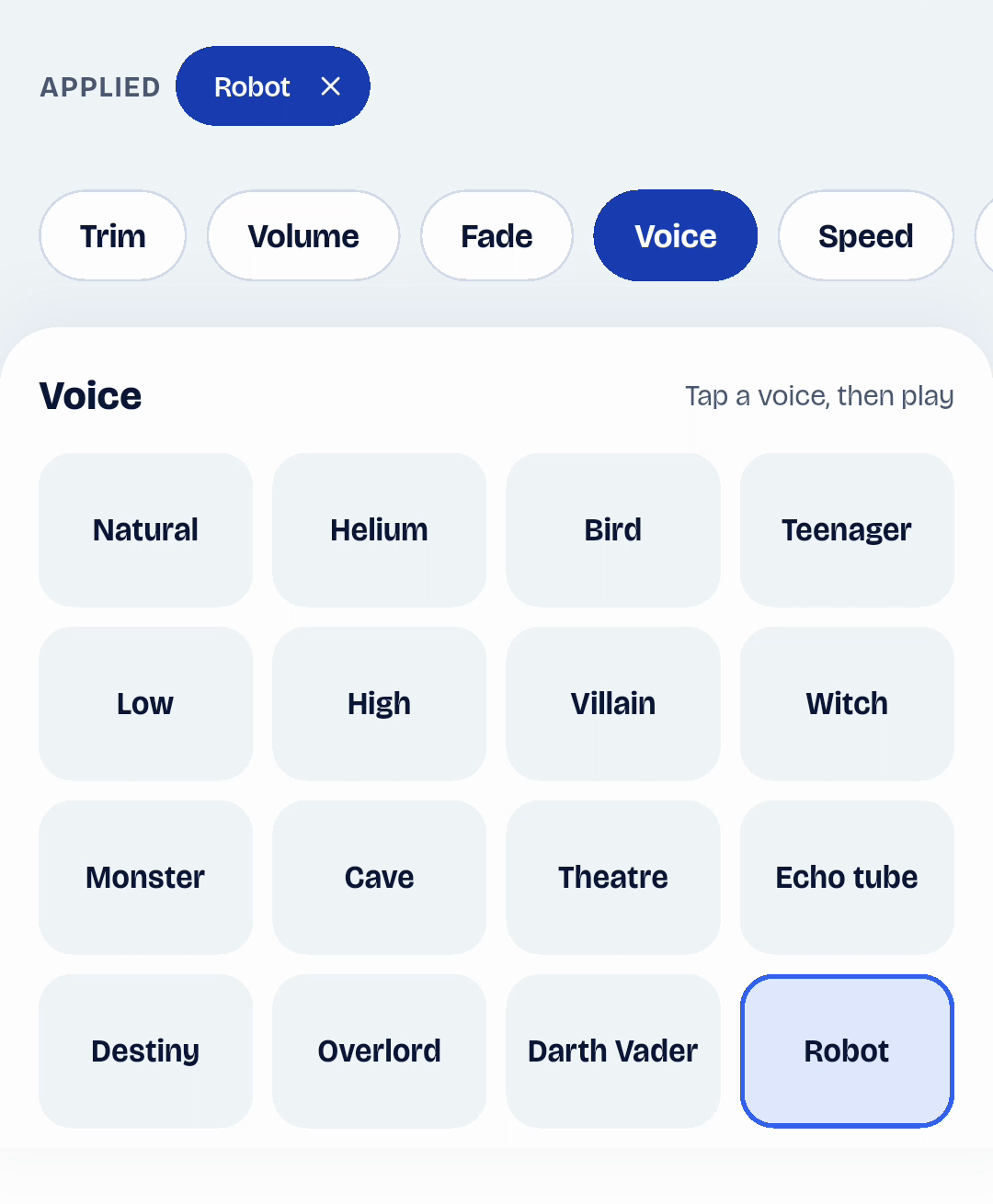
Choose Voice and tap a preset such as Robot, Low, Helium or Monster. If you do not own Pro, follow the free-preview prompt to try the effect.
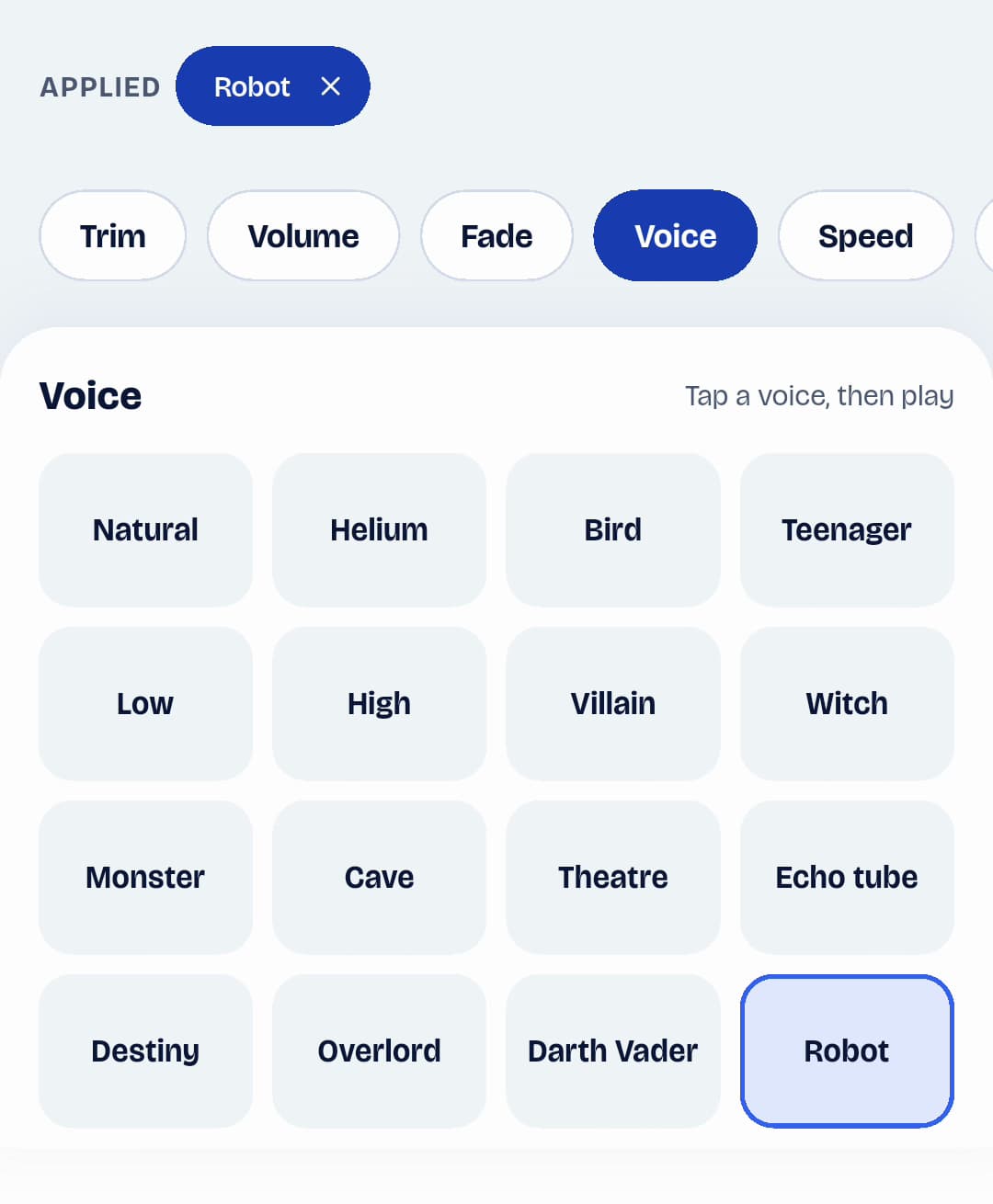
Android · TapeSailChoose a voice preset. Robot is selected in this example. View larger Compare with the original
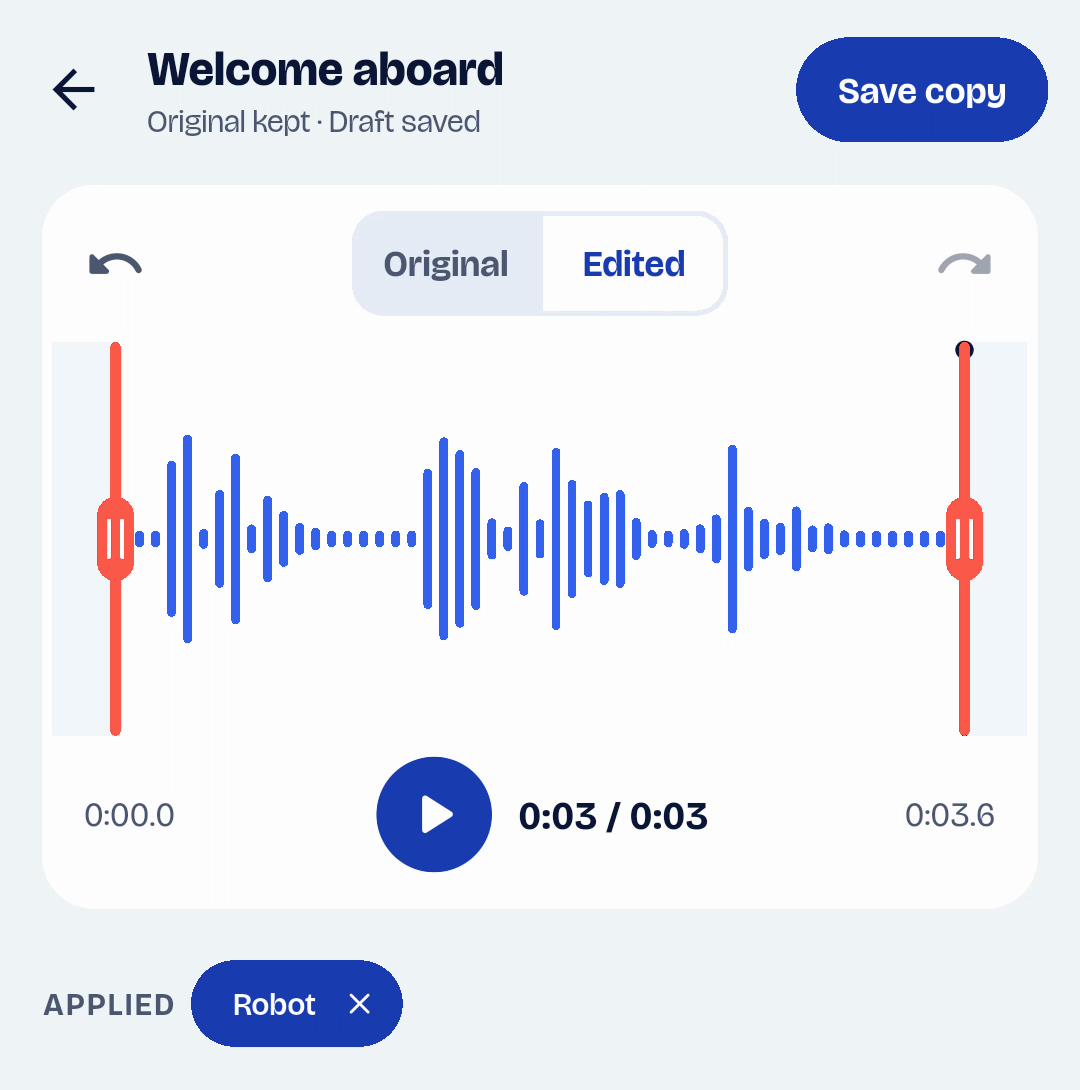
Play Edited to hear the preset, then switch to Original. Try the same passage with a few presets. Natural resets the voice-processing settings if you want to start again.
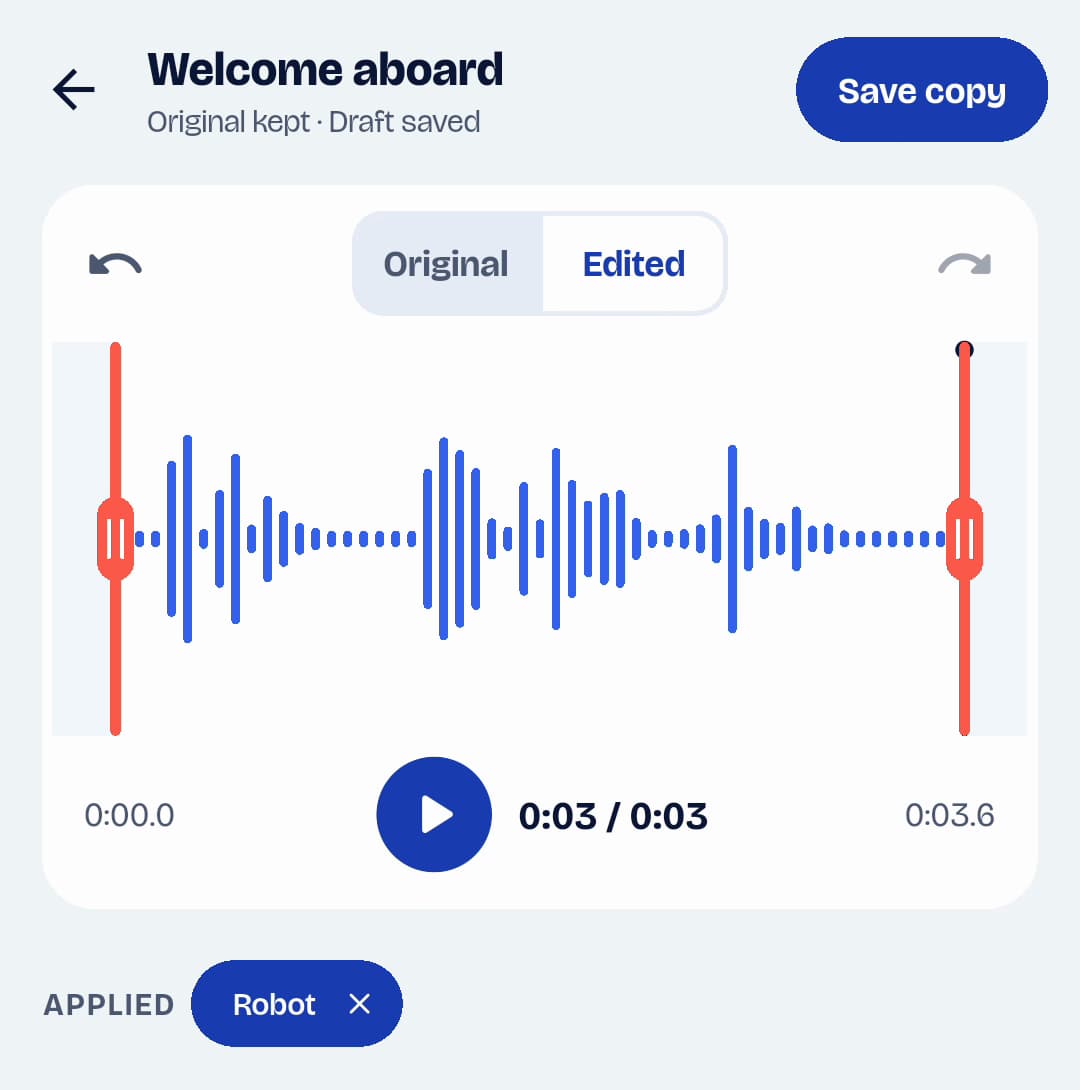
Android · TapeSailSwitch between Original and Edited, then tap Play to compare the sound. View larger Check timing and volume
Some presets make audio faster or slower. Listen through the ending and check the level before saving. You can still adjust trim, volume and fades; choosing another preset replaces the pitch, speed, echo and WahWah settings.
Save the effect with Pro
Tap Save copy and name the processed recording. With Pro, TapeSail saves a new WAV copy in the library. For an M4A sharing file, use Convert audio on that saved copy.
A few voice presets to try
| Preset | What to listen for |
|---|---|
| Natural | Resets voice-processing settings. |
| Low | A lower-pitched voice. |
| Robot | A lower-pitched voice with a short echo effect. |
| Helium | A higher, faster voice with a shorter duration. |
| Monster | A lower, slower voice. |
Voice filter questions
Do voice filters change the original recording?
No. Preview and Save copy leave the source file in your library. The editor’s Original option lets you compare against it while working.
Why did the voice change speed?
Some presets combine pitch, tempo or playback-rate changes with echo. Helium and Bird increase rate, which raises pitch and shortens the audio. Use the separate Pitch control when you want to adjust pitch independently.
Can I save without buying Pro?
You can save trim, volume and fades for free. If you decline the upgrade and the app offers Save basic edits only, that copy leaves out advanced effects and the advanced draft is kept for later. Saving the voice filter itself requires Pro.