Free · iPhone and Android
Convert audio between WAV and M4A
To convert a recording in TapeSail, open its more-actions menu, choose Convert audio, select WAV or M4A, and tap Save a copy. Conversion is free. M4A contains AAC audio and usually makes a smaller file; WAV is uncompressed 16-bit audio.
By TapeSail · Updated
Watch: convert WAV to M4A in TapeSail
This Android demo shows how to convert a WAV recording to M4A, compare quality and size estimates, save a new copy and play the result. Conversion is free, and the original stays in the library.
Playing loads YouTube and shares data with Google. Privacy details.
Watch the demo on YouTubeHow to convert WAV or M4A
Open Convert audio
Find the recording in the library, open its more-actions menu and choose Convert audio.
Choose the output format
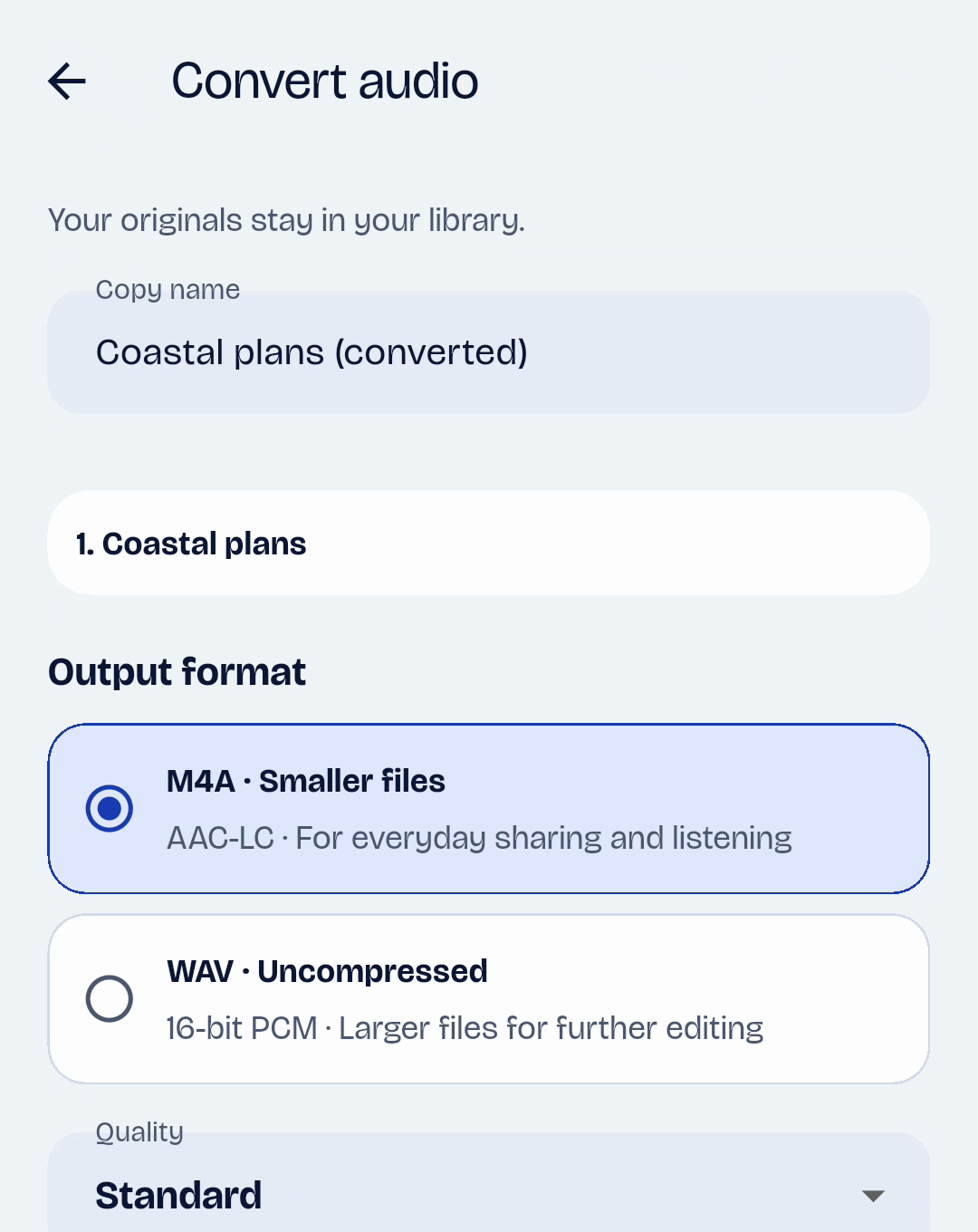
Select M4A · Smaller files for compressed AAC audio, or WAV · Uncompressed for 16-bit PCM audio. Choose M4A when a smaller sharing file matters, or WAV when the recipient needs an uncompressed file.
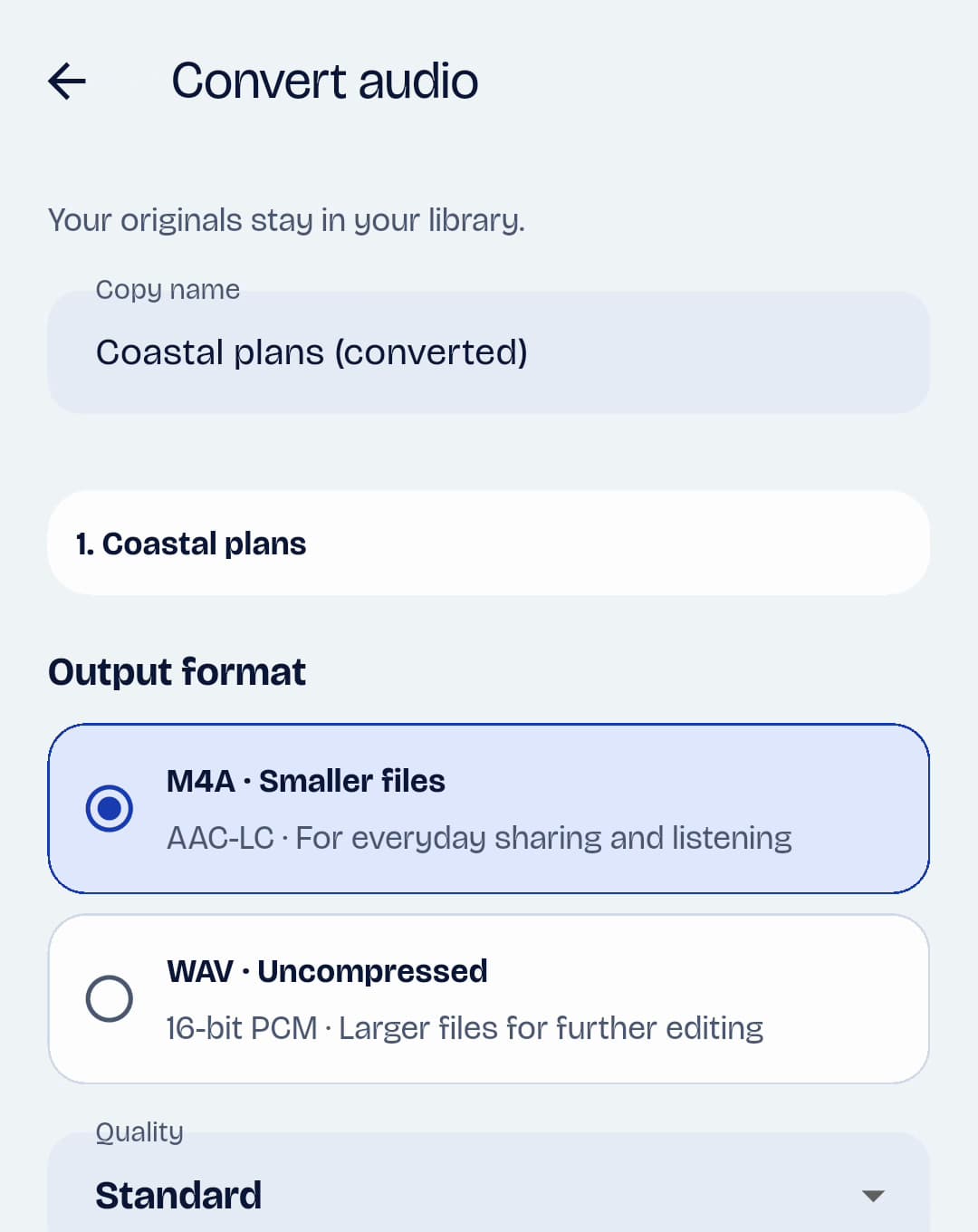
Android · TapeSailChoose M4A for a smaller file or WAV for uncompressed audio. View larger Choose M4A quality
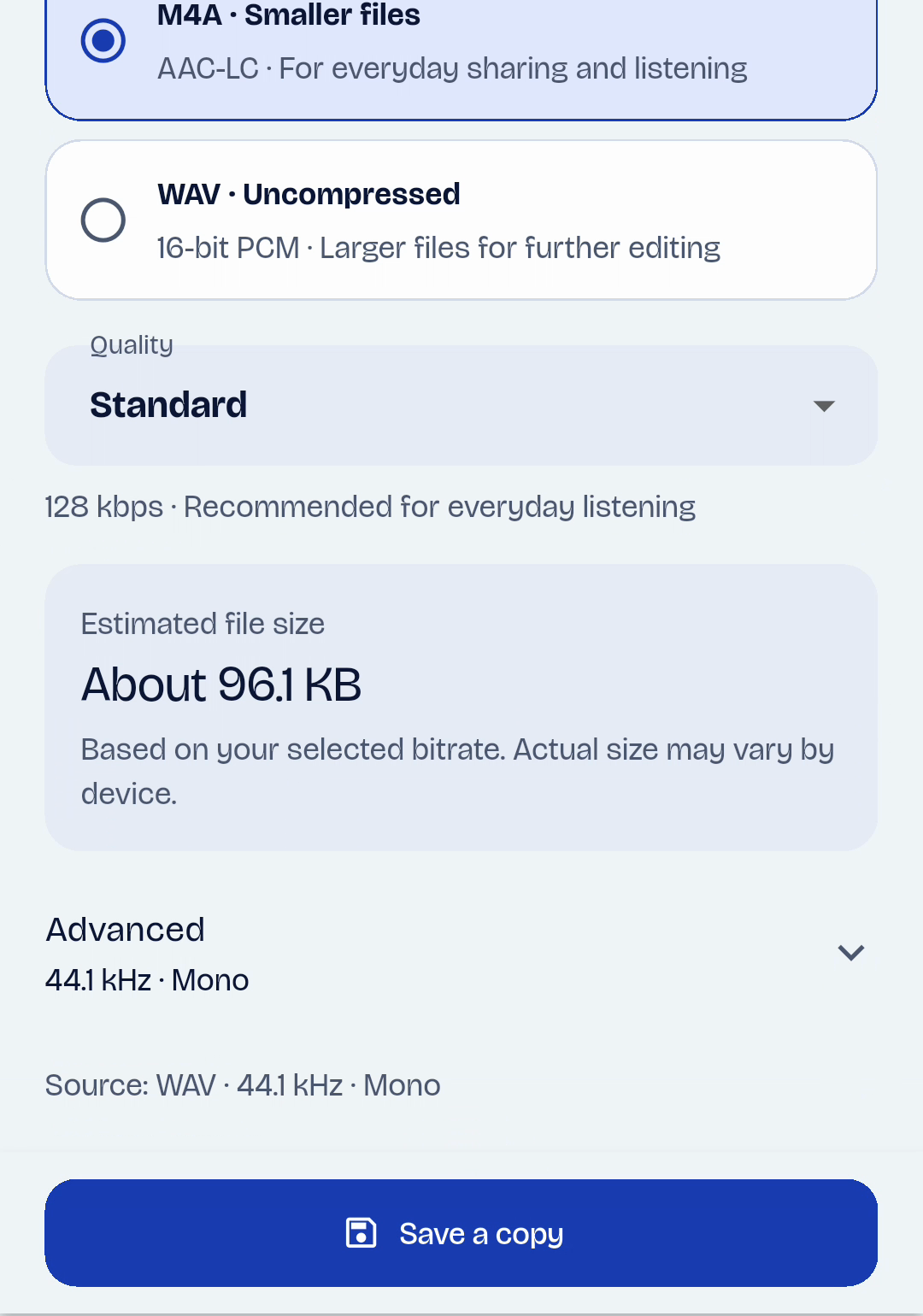
For M4A, start with Standard (128 kbps), the app’s everyday recommendation. Small (64 kbps) uses less space; High quality (256 kbps) uses more. The size estimate updates as you change the settings.
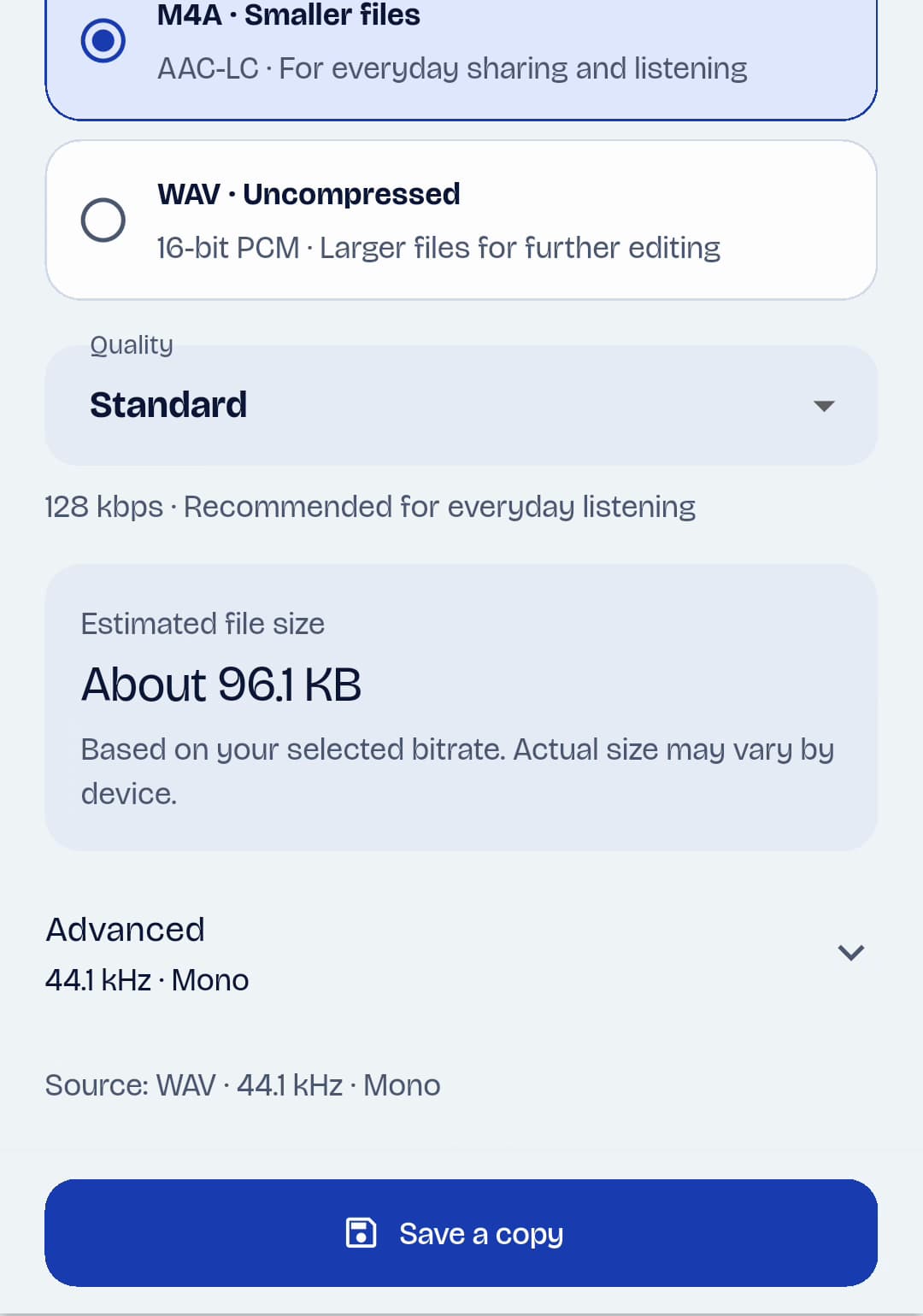
Android · TapeSailM4A quality affects the estimated file size. Review the estimate before saving. View larger Open Advanced only if needed
Advanced contains sample rate and mono/stereo choices. M4A also offers exact bitrates of 64, 96, 128, 192 and 256 kbps. Keep the defaults unless your destination requires a specific setting; increasing sample rate or bitrate cannot restore missing detail.
Save, listen and export
Enter a Copy name and tap Save a copy. Play the converted file from the library and check any notice about adjusted settings. Use Share or Export to send it to another app or choose a file destination.
Which M4A quality should I choose?
| Preset | Bitrate | When to choose it |
|---|---|---|
| Small | 64 kbps | When a small file matters most; listen for loss of detail. |
| Standard | 128 kbps | The app’s recommended starting point for everyday listening. |
| High quality | 256 kbps | When preserving more detail matters more than file size. |
Format, size and quality questions
Are AAC and M4A different formats?
AAC is the audio codec; M4A is the file container. TapeSail’s M4A option saves AAC-LC audio in an .m4a file, so references to AAC output and M4A output describe the same choice in these guides.
Will converting M4A to WAV improve the sound?
No. WAV avoids another compressed output, but converting an existing compressed recording cannot recover detail already lost. Choose it for compatibility or further editing, rather than as a repair.
Why is the final M4A size different from the estimate?
The size is an estimate based on duration and selected bitrate. The device encoder may adjust settings, and actual size can vary. Temporary decoded audio also needs storage during conversion.
Why do recording quality options look different?
Convert audio has its own quality presets. Settings for a new AAC recording use separate bitrate choices: 24, 96, 128 or 192 kbps. Changing a conversion setting does not change recording preferences.