TapeSail Pro · iPhone and Android
Merge recordings into one audio file
To merge audio files in TapeSail, select two or more recordings in the library, open Merge or mix, and choose Merge in order. You can arrange the files before upgrading; saving the combined copy requires TapeSail Pro. Your source files stay in the library.
By TapeSail · Updated
Watch: merge audio on Android
Open More options, choose Select recordings, then use Merge or mix to arrange two clips. Save a WAV copy and play the complete joined result. Setup is free; saving requires Pro. Both originals stay in the library.
Playing loads YouTube and shares data with Google. Privacy details.
Watch the demo on YouTubeWatch: merge audio on iPhone
Follow the current iPhone selection controls, put two recordings in order, save a combined WAV and listen across the join. Setup is free; saving requires Pro. Both original recordings remain unchanged.
Playing loads YouTube and shares data with Google. Privacy details.
Watch the demo on YouTubeHow to merge audio files
Select at least two recordings
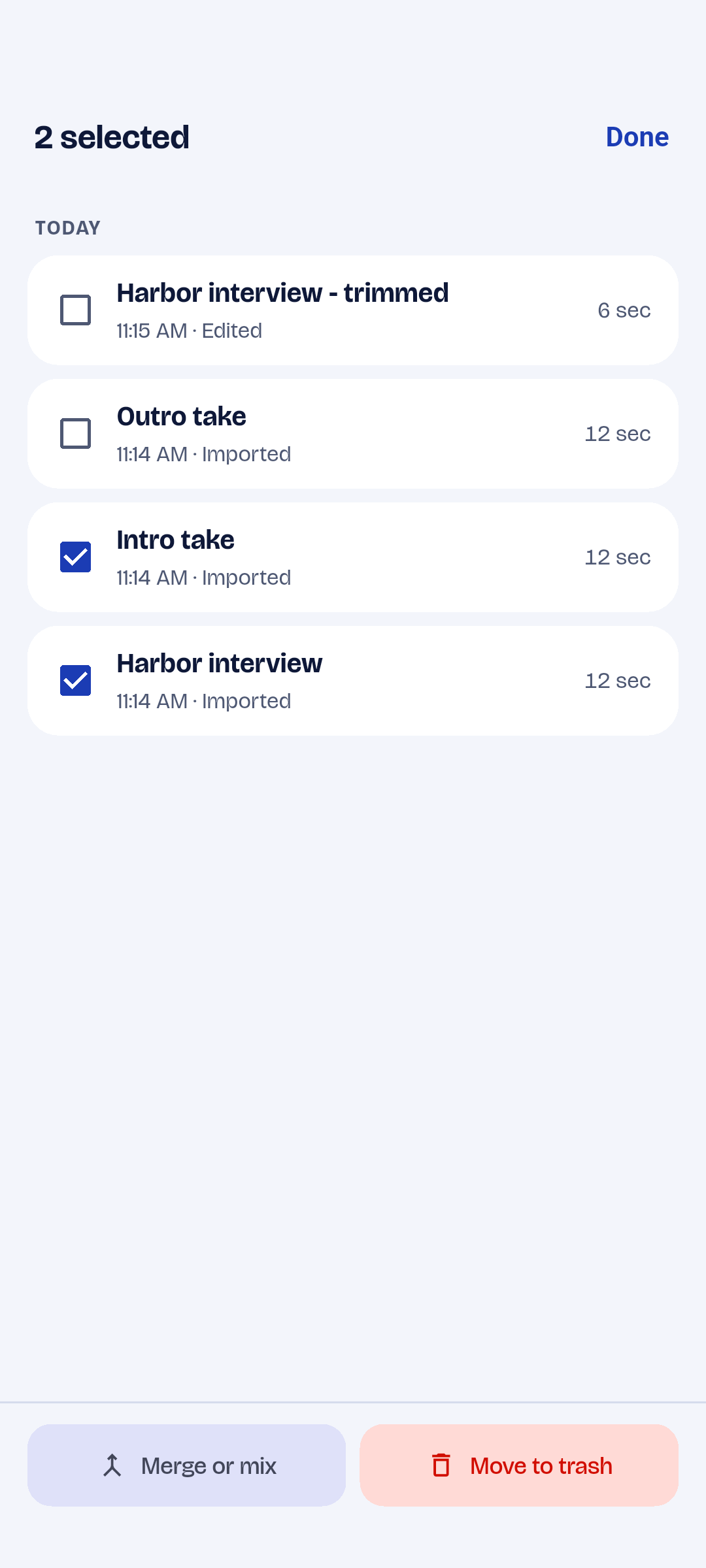
Open More options in the library, tap Select recordings and choose the files to join. The combine action appears once at least two ready recordings are selected.
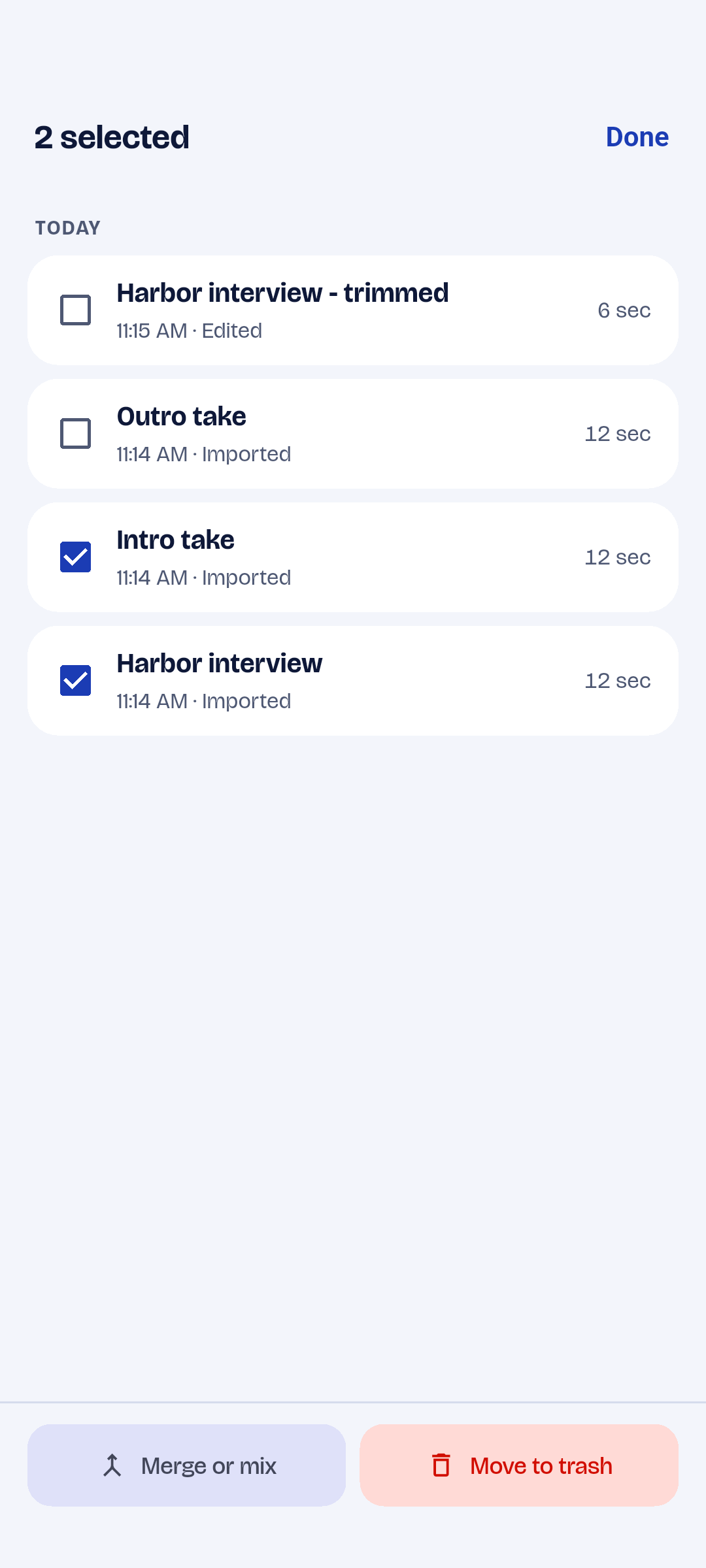
Android · TapeSailSelect two or more recordings to reveal Merge or mix. View larger Open the combine screen
Tap Merge or mix. This opens Combine audio, where you can arrange everything. Saving the result needs Pro; if you do not own it, TapeSail shows the upgrade options when you save.
Set the playback order
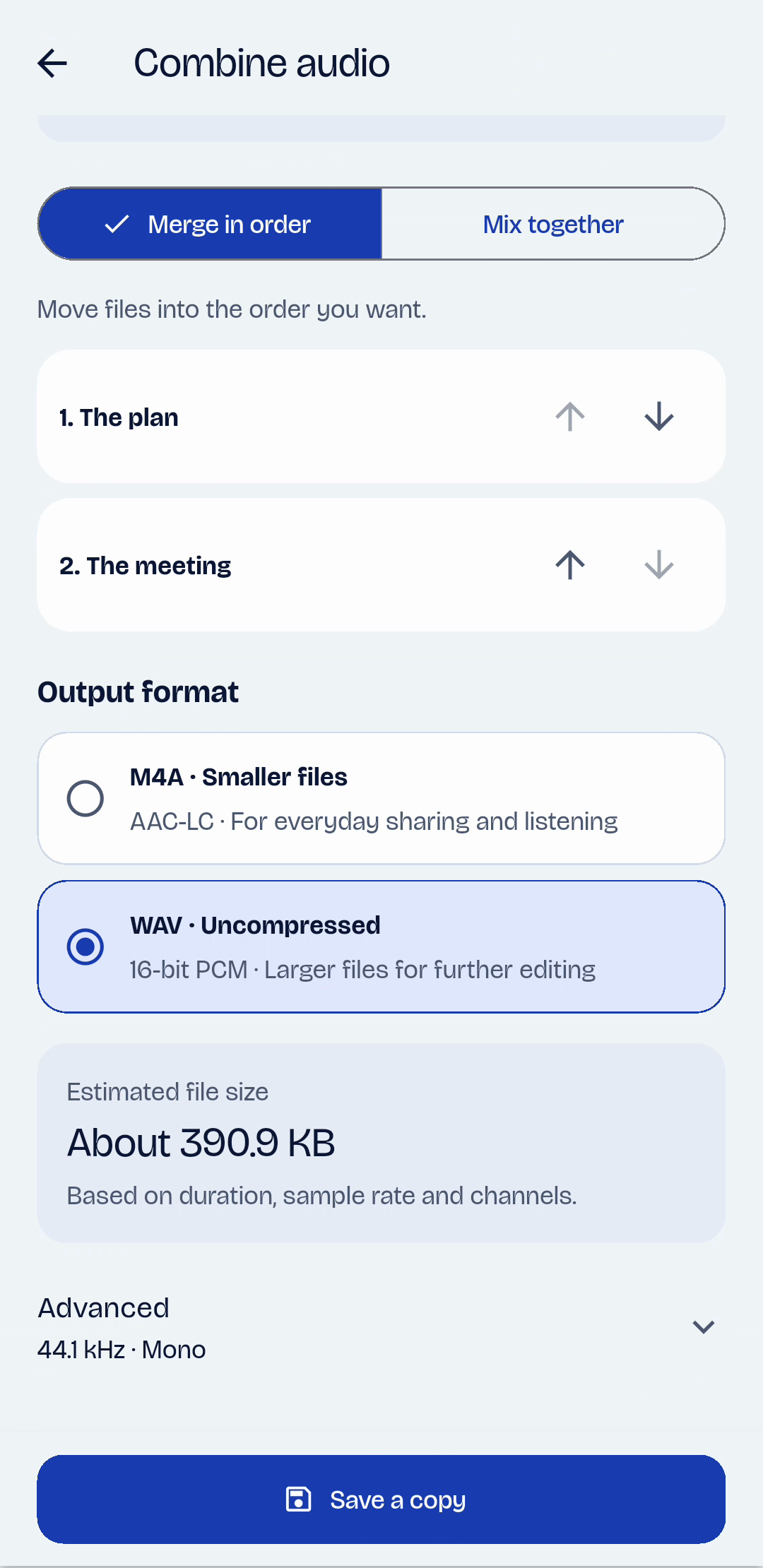
Choose Merge in order. Use Move earlier and Move later beside the sources to put them in the sequence you want. The first file plays first, followed by the next file.
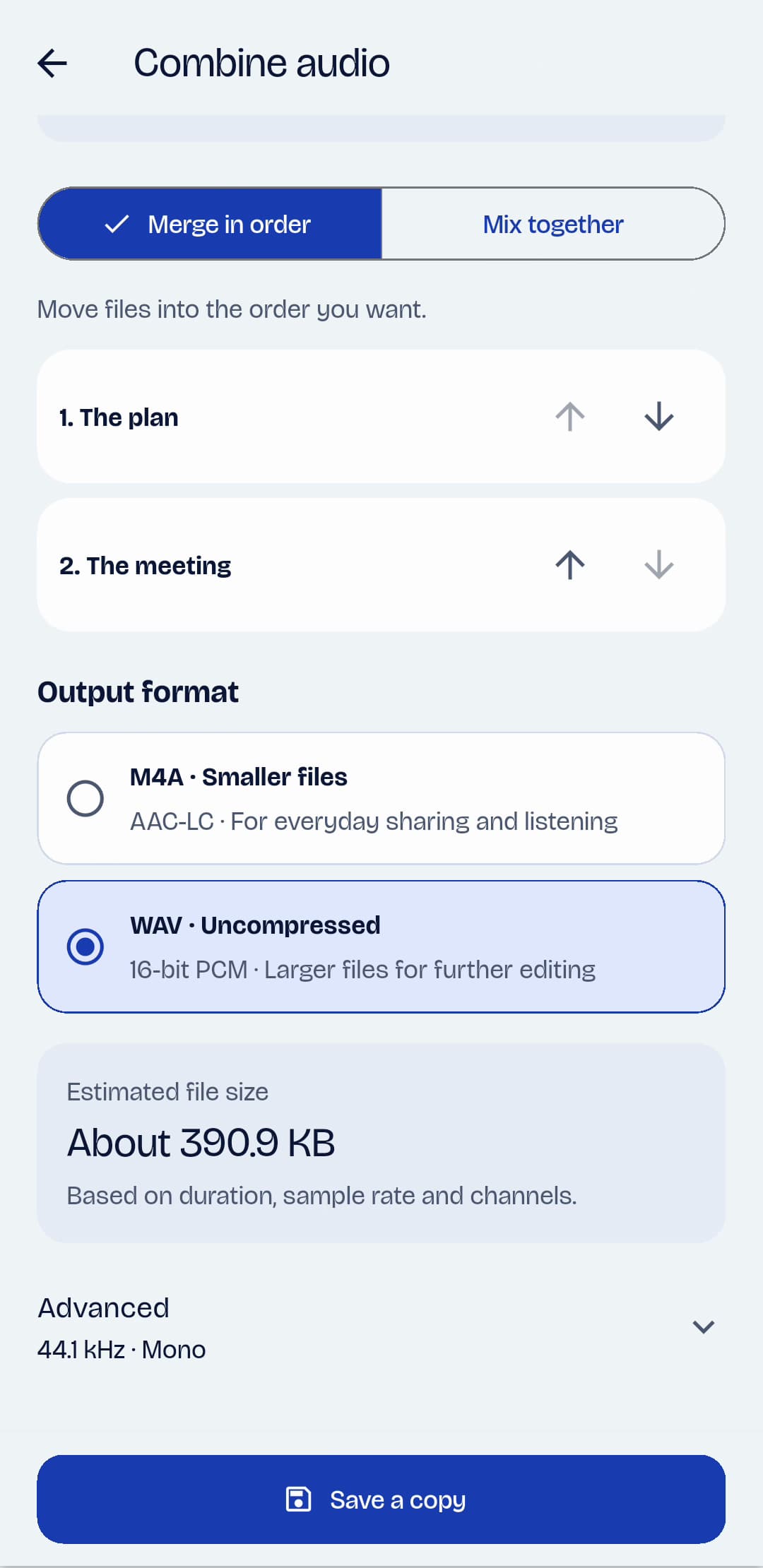
Android · TapeSailUse the arrows beside each source to set the order; the top recording plays first. View larger Name the copy and choose its format
Enter a Copy name. Choose WAV for an uncompressed file or M4A for a smaller file. Keep the default output settings unless you need a particular sample rate or mono/stereo output; these controls are under Advanced.
Save and check the joins
Tap Save a copy and wait for processing to finish. Play the combined recording from the library, especially the transitions between sources. Use Share or Export to send or save the finished file.
Should I choose Merge or Mix?
| Mode | What it does | Use it for |
|---|---|---|
| Merge in order | Plays sources one after another. | Joining separate takes into a sequence. |
| Mix together | Plays sources together, with a volume and start delay for each. | Layering one recording over another. |
Merge behaviour and troubleshooting
Can I join WAV and M4A recordings?
Yes. Merge can combine WAV and AAC/M4A sources by converting them to the selected output sample rate and channel setting. Every input is kept as a separate recording.
Why is the combine action unavailable?
Select at least two finished, ready-to-play recordings. Stop and save an active take, or wait for another processing job to finish, before combining files.
Why does a merge need extra storage?
The app may need temporary uncompressed audio as well as the final output. A small compressed source can therefore need more working space than its file size suggests. Keep free device storage available for long jobs.