TapeSail Pro · iPhone and Android
Mix voice and music into one audio file
To layer voice over music in TapeSail, select both recordings in the library, open Merge or mix, and choose Mix together. You can set each source's volume and start delay before upgrading; saving the combined copy requires TapeSail Pro. Your source recordings stay in the library.
By TapeSail · Updated
Watch: mix voice and music on Android
Hear the two sources, use the current Android selection controls, lower music to 20% and delay the voice by one second. Save and play the complete WAV mix while keeping both originals. Setup is free; saving requires Pro.
Playing loads YouTube and shares data with Google. Privacy details.
Watch the demo on YouTubeWatch: mix voice and music on iPhone
Follow the iPhone workflow to combine voice and music, adjust volume and start delay, then save and play the actual mix. The combine screen has no preview button. Setup is free; saving requires Pro. Both originals remain available.
Playing loads YouTube and shares data with Google. Privacy details.
Watch the demo on YouTubeHow to mix voice and background music
Select the source recordings
Open More options in the library, tap Select recordings and choose at least two finished, ready-to-play files. For a voice-over, select your spoken recording and a music recording.
Choose Mix together
Tap Merge or mix. This opens Combine audio, where you can set everything up before saving. If you do not own Pro, TapeSail shows the upgrade options when you save. On Combine audio, choose Mix together. This overlaps the sources; Merge in order plays them one after another.
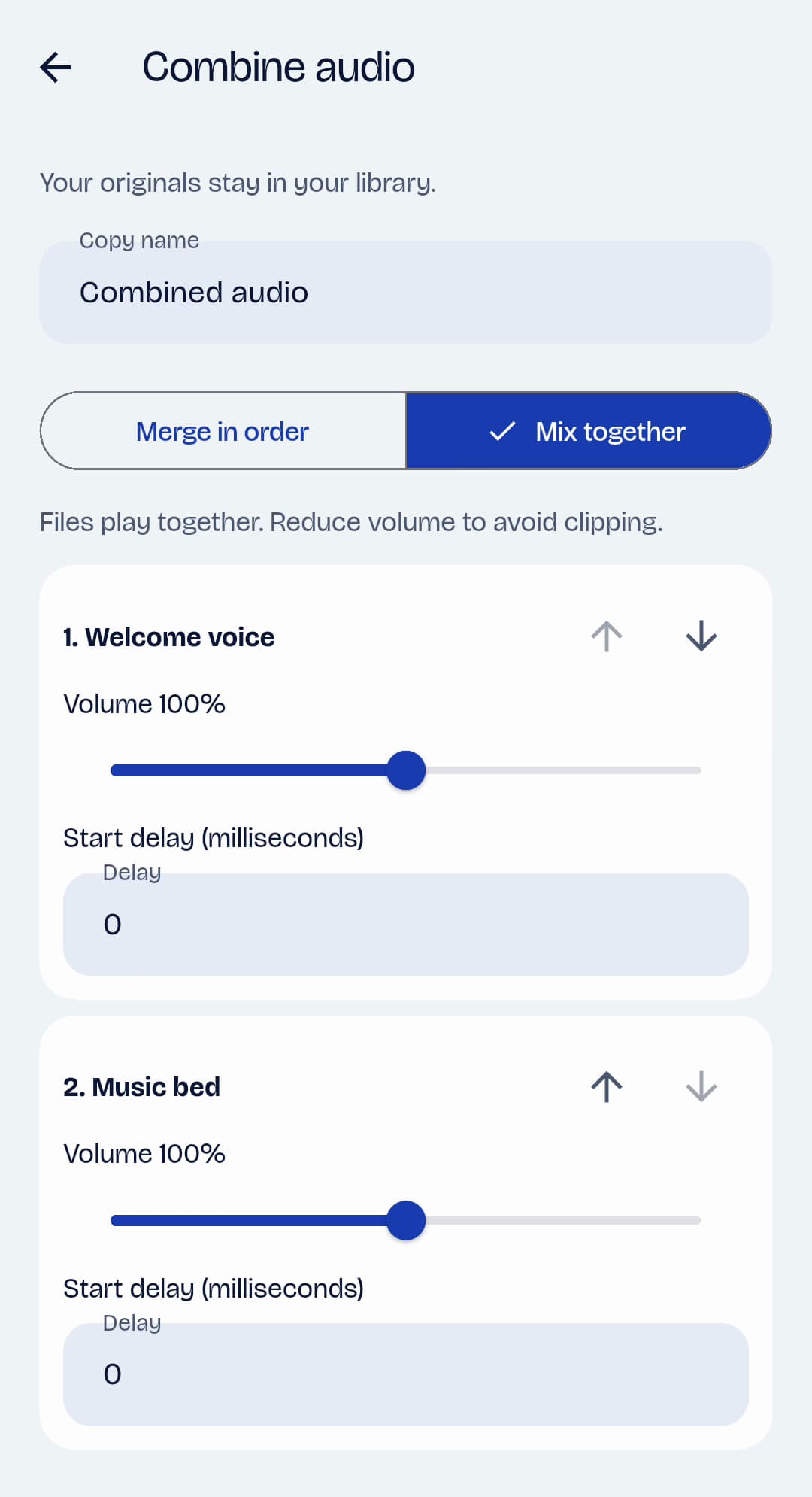
Android · TapeSailChoose Mix together to overlap the recordings. Each source has its own volume and start delay. View larger Balance the source volumes
Drag the Volume slider for each recording. Start with the music quieter than the voice so the words remain clear. For example, try voice at 100% and music at 20%, then judge the saved result by listening. These are starting points, not settings that suit every recording. Reduce levels if the combined audio sounds distorted.
Set when each recording starts
Enter a whole number in each source’s Delay field, under Start delay (milliseconds). A delay of 0 starts that source immediately; 1000 starts it one second later. To let music introduce the voice, leave the music at 0 and set the voice to 1000. Delay shifts the whole source; it does not trim it.
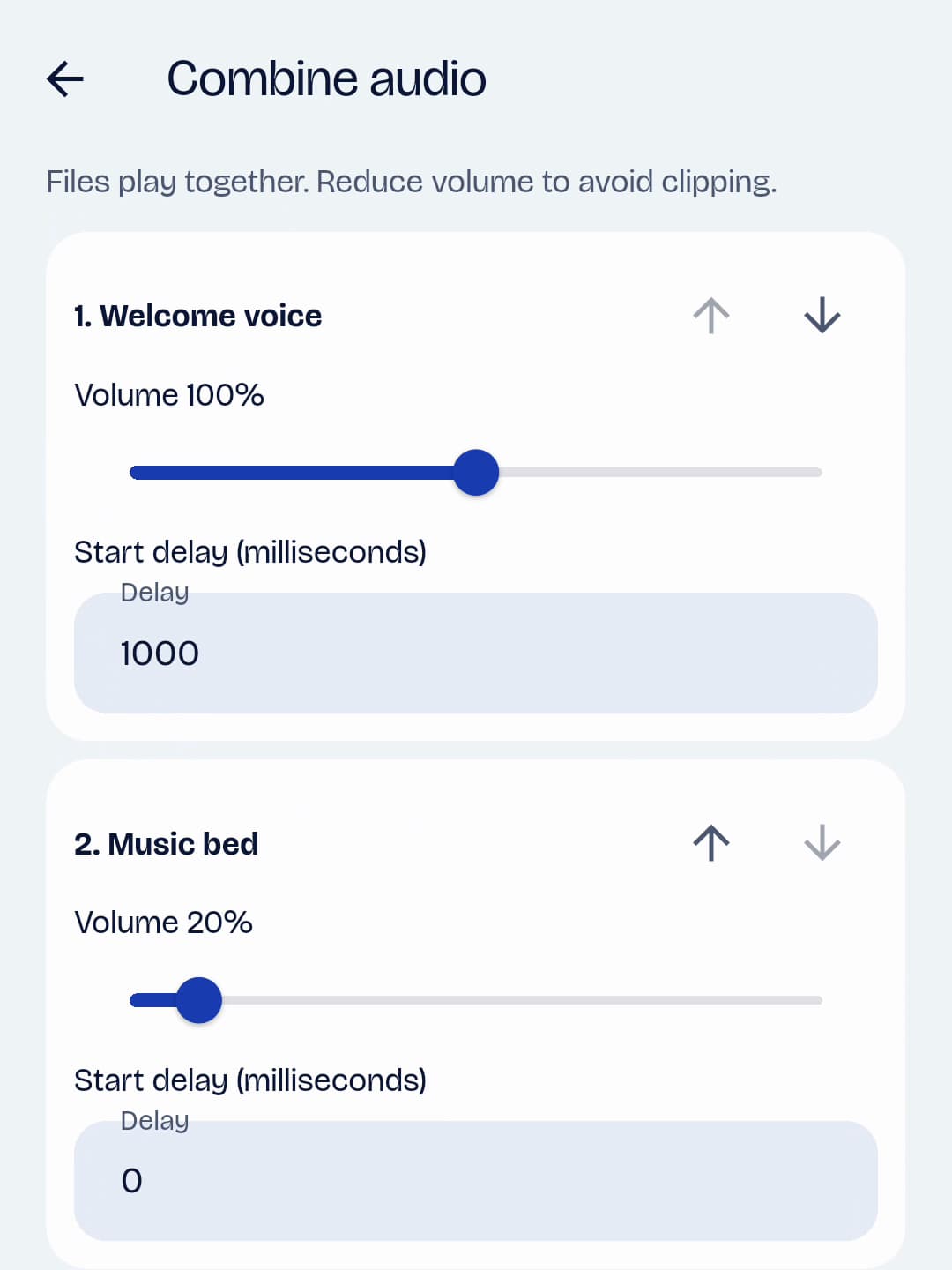
Android · TapeSailIn this example, music starts immediately at 20% volume; the voice starts one second later at 100%. View larger Name and save the mix
Enter a Copy name and choose WAV for uncompressed audio or M4A for a smaller sharing file. M4A quality choices and file-size estimates work as they do in Convert audio. Keep the default output settings unless you need a particular sample rate or channel setting under Advanced. Tap Save a copy and wait for processing to finish.
Listen to the saved copy
Open the new recording in the library and tap Play. The combine screen has no preview control, so check the balance, voice entrance and ending after saving. To change the balance or delay, select the source recordings again and make another mix. Use Save to Files or Share when you are happy with the result.
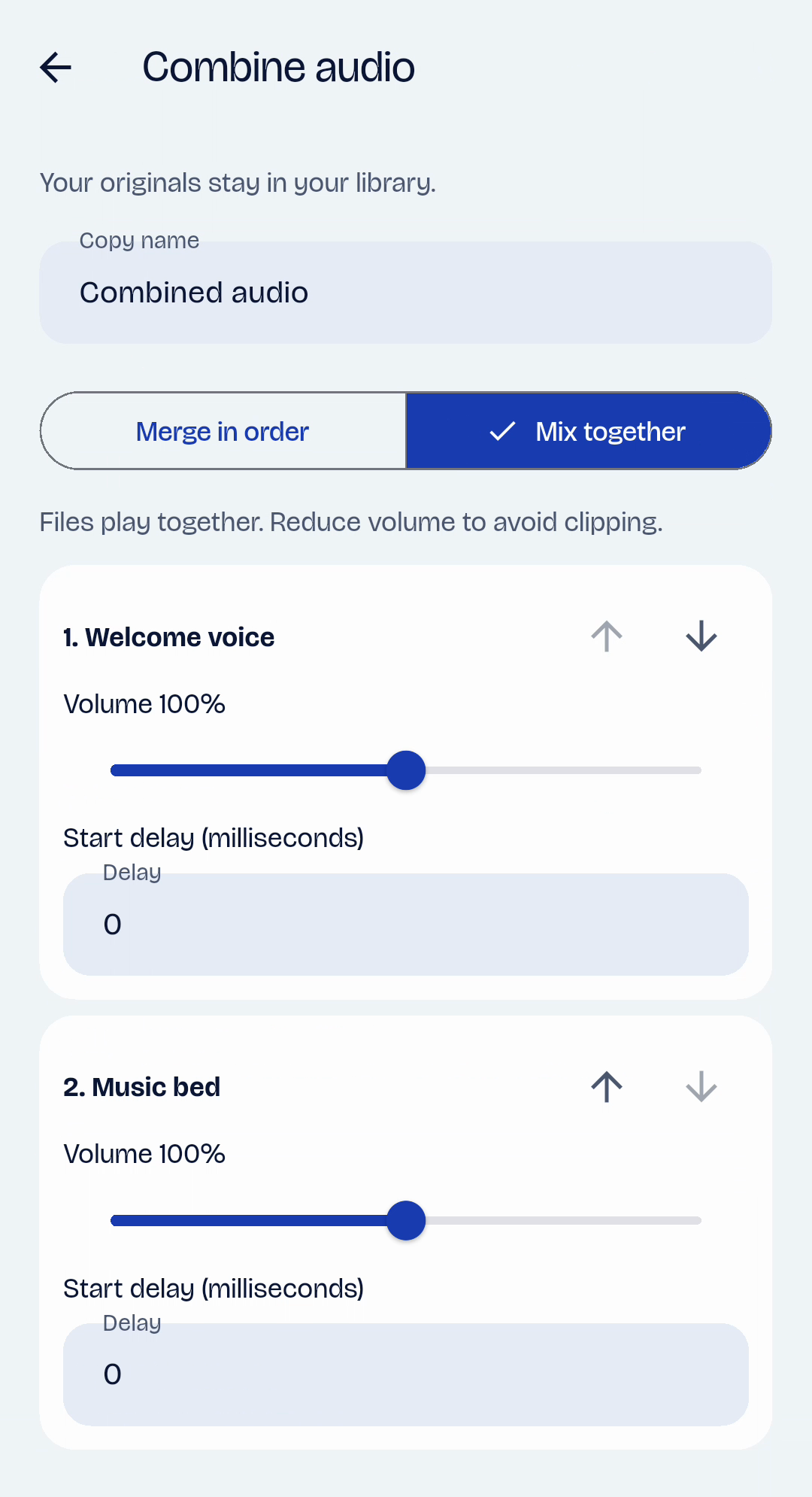
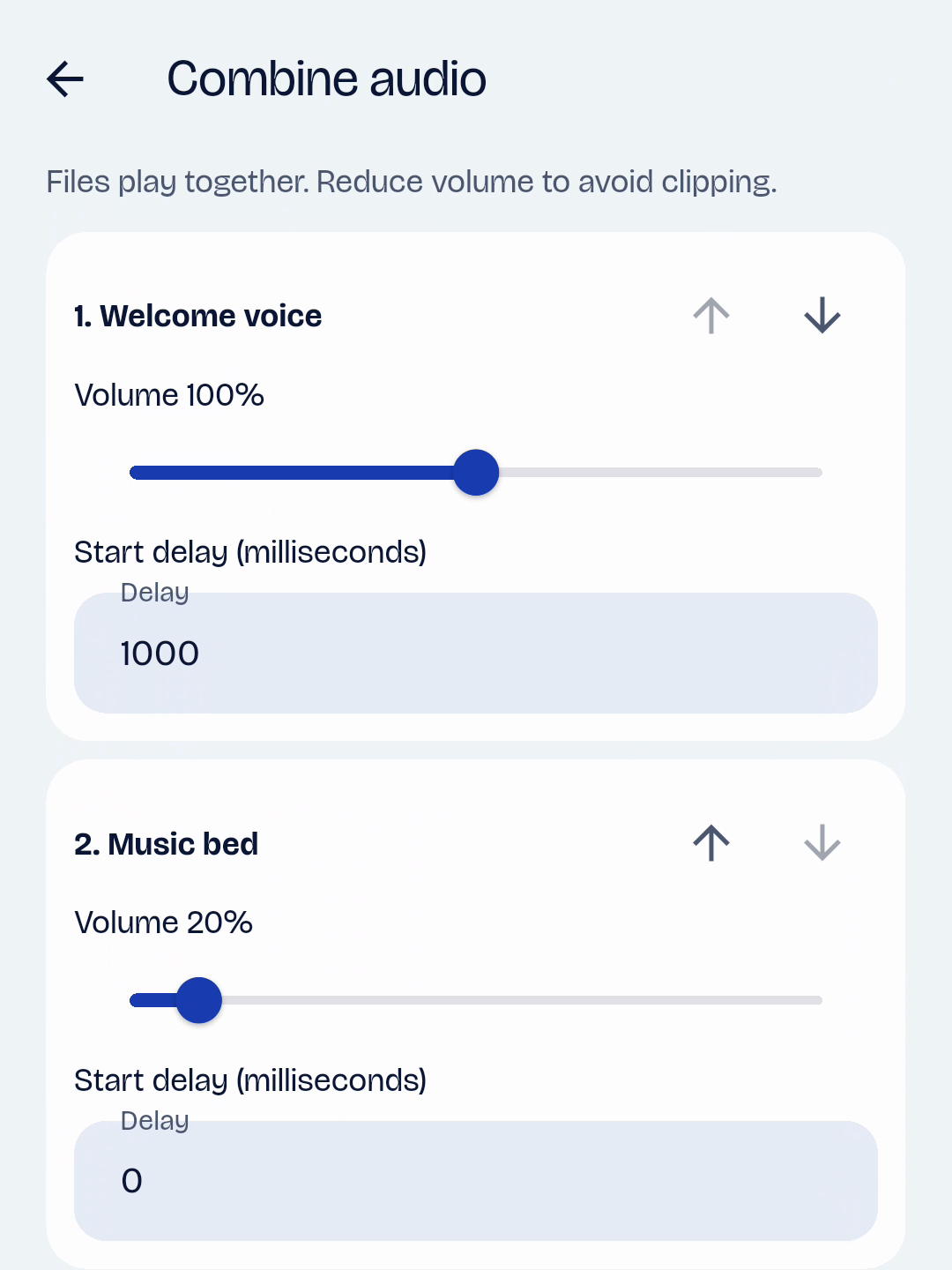
An example: music first, voice one second later
| Source | Volume | Start delay |
|---|---|---|
| Voice | 100% | 1000 ms · starts after one second |
| Music | 20% | 0 ms · starts immediately |
Mixing questions and limits
How is mixing different from merging?
Mix together overlaps recordings, with a separate volume and start delay for each. Merge in order joins them in a sequence. Use Mix for voice over music or overlapping sounds; use Merge to join separate takes end to end.
Can I listen before saving a mix?
You can play each source in the library before combining, but Combine audio has no mixed-preview control. Save a copy, then play it from the library. Your originals remain available if you want to make another version.
Does the music automatically get quieter during speech?
No. Each source’s Volume setting applies throughout that source. TapeSail does not automatically lower music when someone speaks. Choose a quiet enough music level, or prepare a source with volume and fades before mixing.
What happens when one recording ends first?
The other recording continues. The mix ends when the last delayed source finishes; sources do not automatically repeat or cut to the length of the voice. To match lengths, trim sources first. To repeat a short source, save a repeated copy with the editor’s Pro Repeat tool before mixing.
Can I mix WAV and M4A files?
Yes. TapeSail converts the sources to the selected output sample rate and mono or stereo setting before combining them. A higher output setting cannot restore detail missing from a source. Processing may need temporary uncompressed audio as well as the final file, so leave free device storage available.
Will mixing change my original recordings?
No. Save a copy creates a new library recording and keeps every source. The finished mix is one combined audio file. Keep the separate sources if you may want to change their individual levels or timing later.