Free · iPhone and Android
Trim audio, adjust volume and add fades
To trim audio in TapeSail, open a recording, tap Edit and choose Trim. Set the start and end of the section you want to keep, then tap Save copy. Trimming, volume and fades are free, and the original file stays in your library.
By TapeSail · Updated
Watch: trim a recording in TapeSail
This one-minute Android demo shows how to drag both trim handles, listen to the edited clip and save a WAV copy while keeping the original. Captured in TapeSail 0.1.0 (8). You can also enter exact Start and End times.
Playing loads YouTube and shares data with Google. Privacy details.
Watch the demo on YouTubeWatch: trim precisely with waveform zoom
This Android development demo shows zoom, pan, exact Start and End times, 0.1-second adjustments and Fit waveform, then saves a free WAV copy. Demonstrated on Android in a development build. These controls require the corresponding app update and may differ from your installed version.
Playing loads YouTube and shares data with Google. Privacy details.
Watch the demo on YouTubeHow to trim a recording
Open the recording in Edit
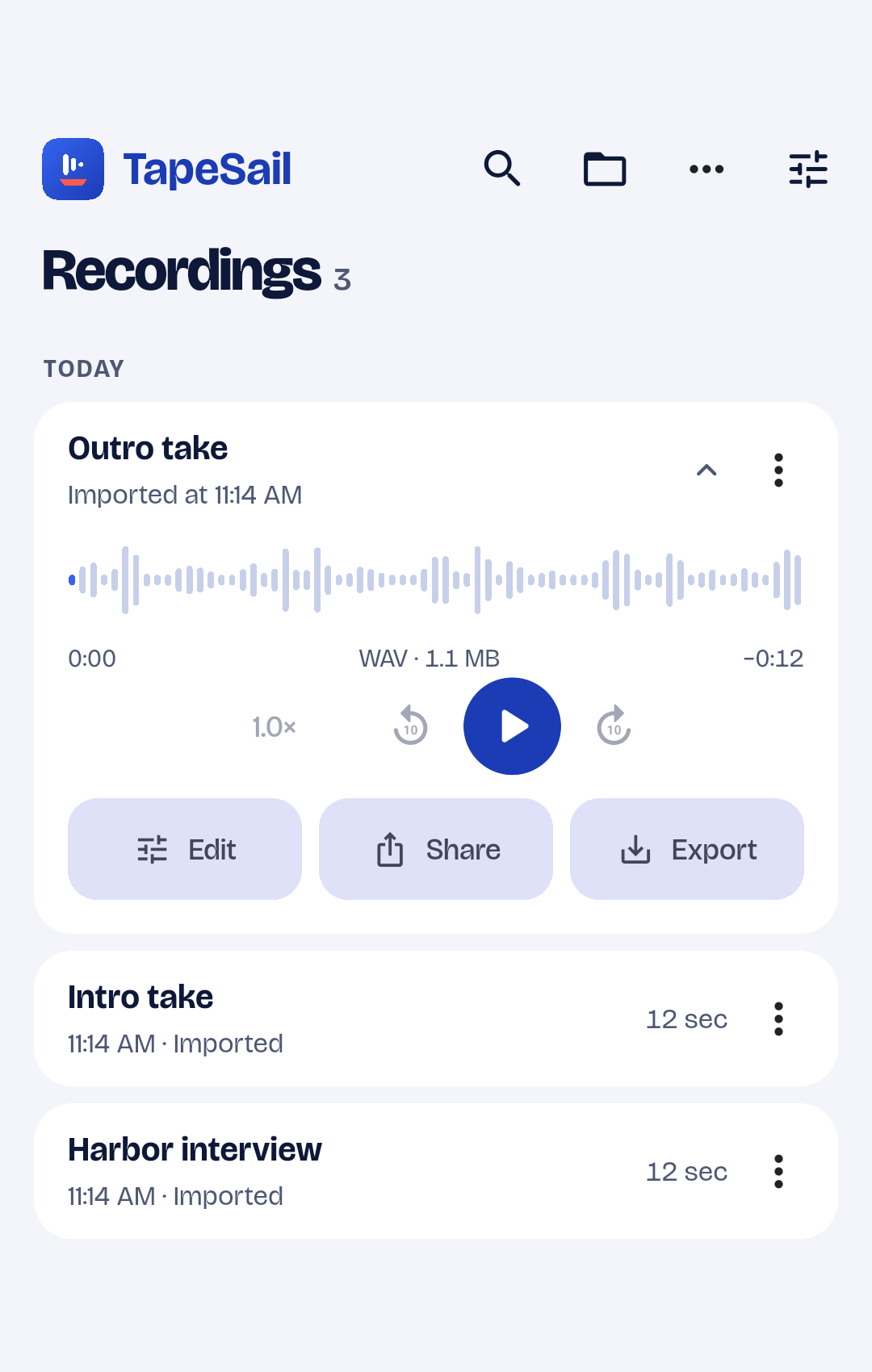
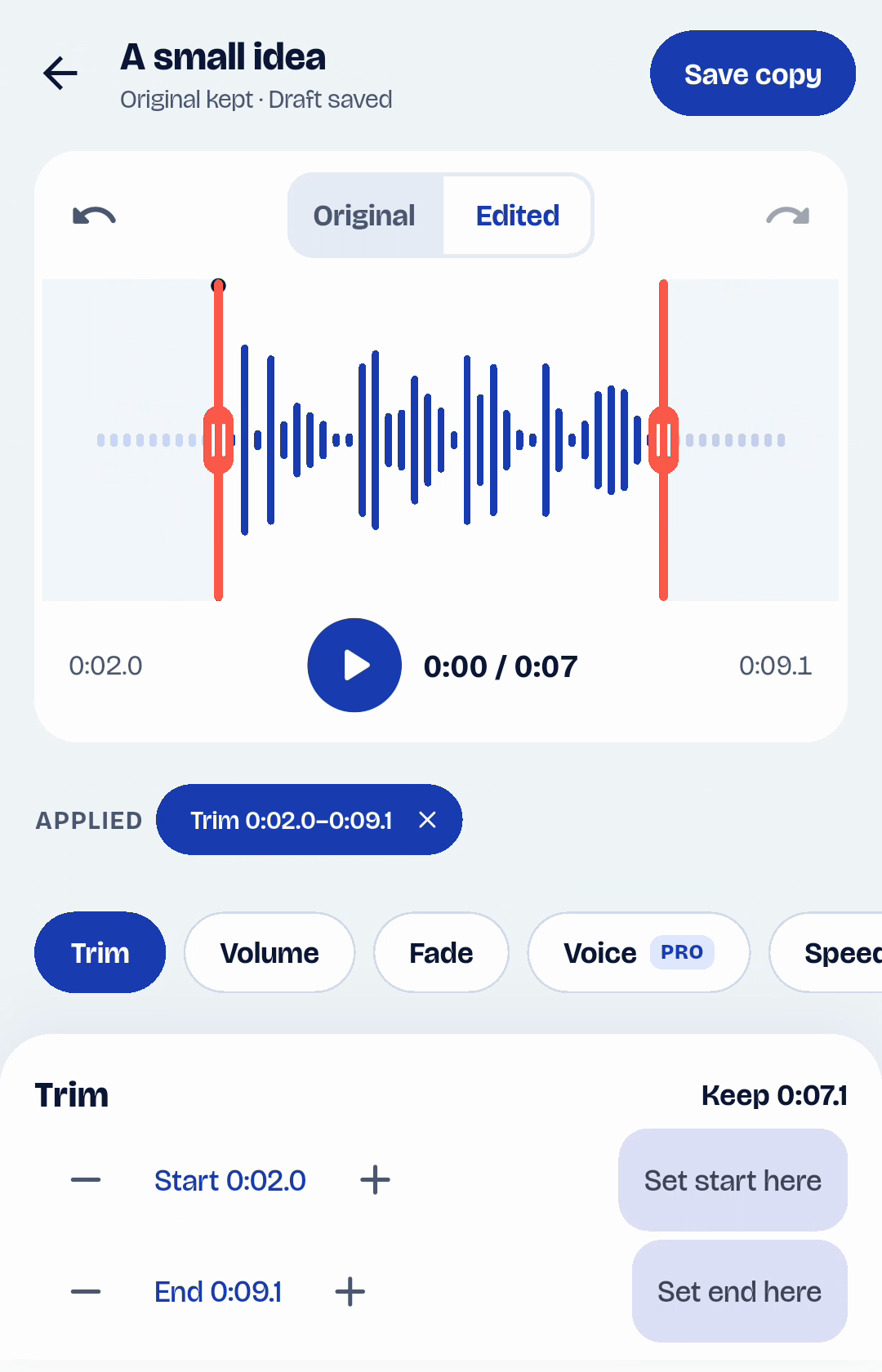
Tap the recording in the library to expand it, then tap Edit. Choose the Trim tool.
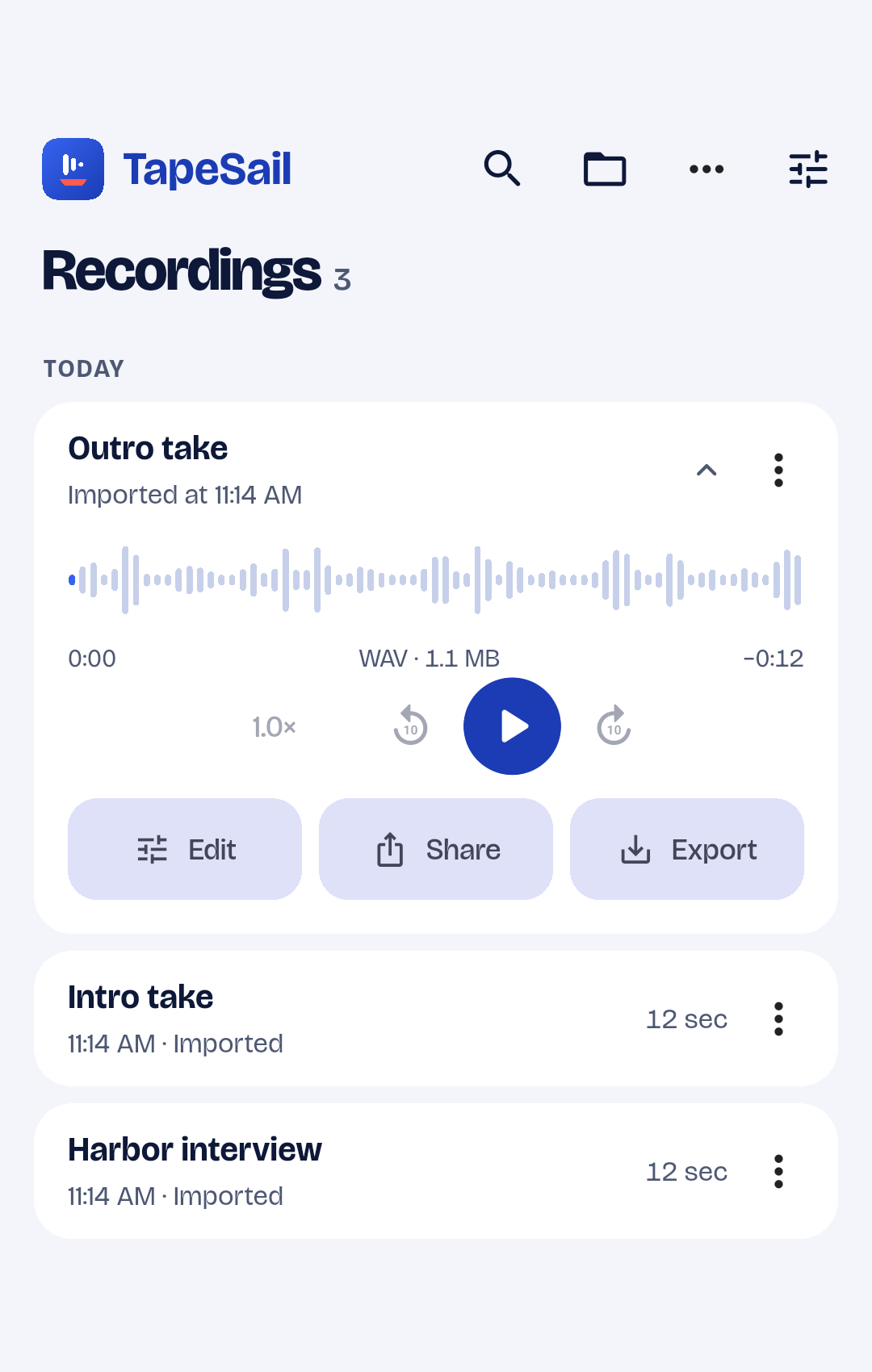
Android · TapeSailOpen a recording in the library, then tap Edit. View larger Zoom in for a closer view, when available
If your version has waveform zoom, tap Zoom in to see a shorter passage. Use the pan slider or the Pan waveform back and Pan waveform forward arrows to move through the recording. Zoom changes the view, not the saved audio. Tap Fit waveform to show the complete recording again. These controls are shown in the development demo and require the corresponding app update.
Set the start and end
Drag the waveform handles around the audio you want to keep. For an exact position, tap Start or End, enter a time such as 1:02.5 and tap Apply. The minus and plus controls move a boundary by 0.1 seconds.
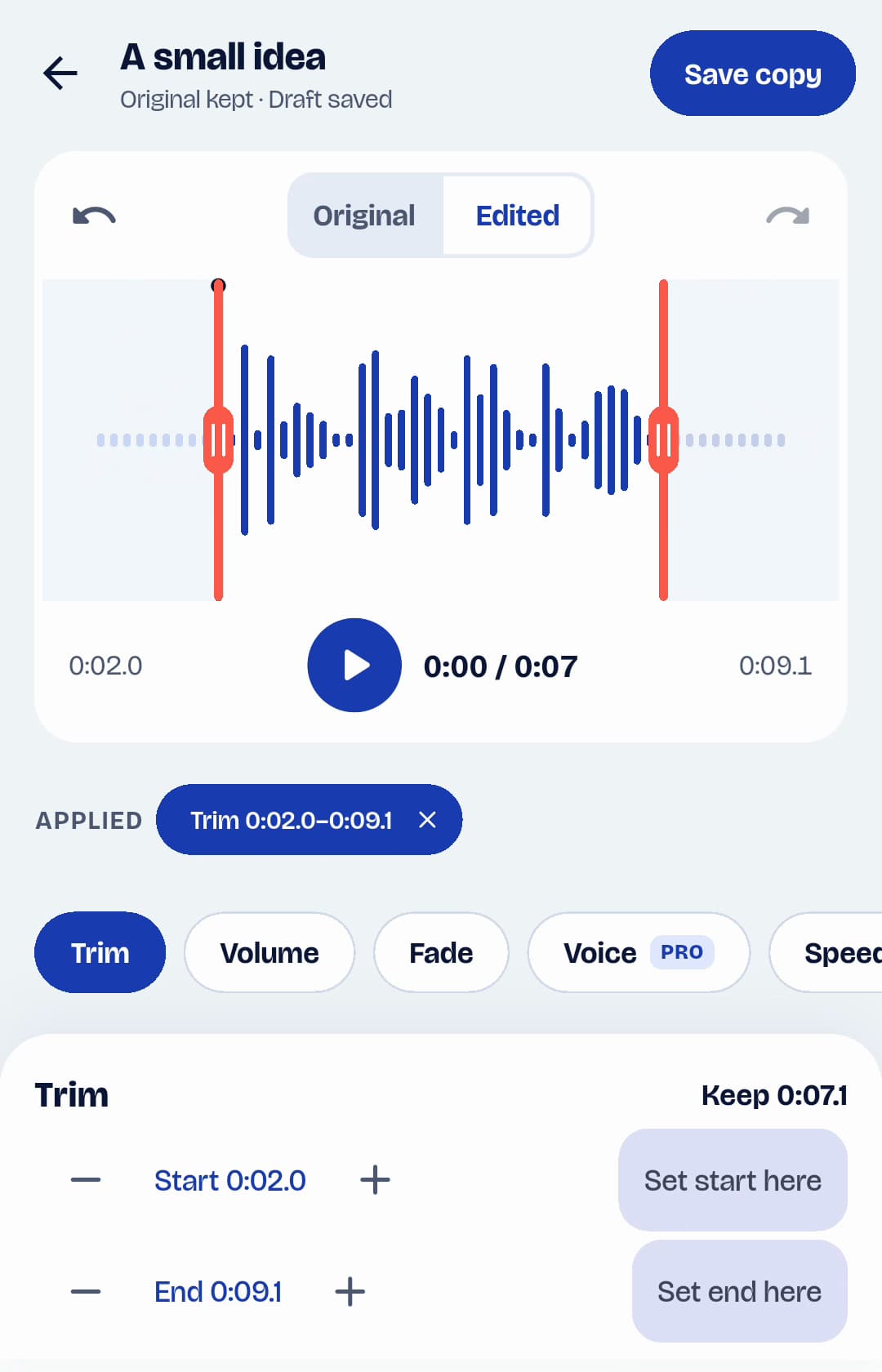
Android · TapeSailDrag the red handles to keep a section, or tap Start and End for exact times. View larger Adjust volume or soften the edges
Choose Volume to change the level. Choose Fade to set Fade in, Fade out or both. A short fade can make an abrupt start or ending sound smoother. If raising the volume makes the audio sound distorted, reduce it.
Listen before saving
Play Edited and compare it with Original. Check both trim boundaries so you do not cut off the first or last word. Use undo or redo to revisit a change while the editor is open.
Save the edited copy
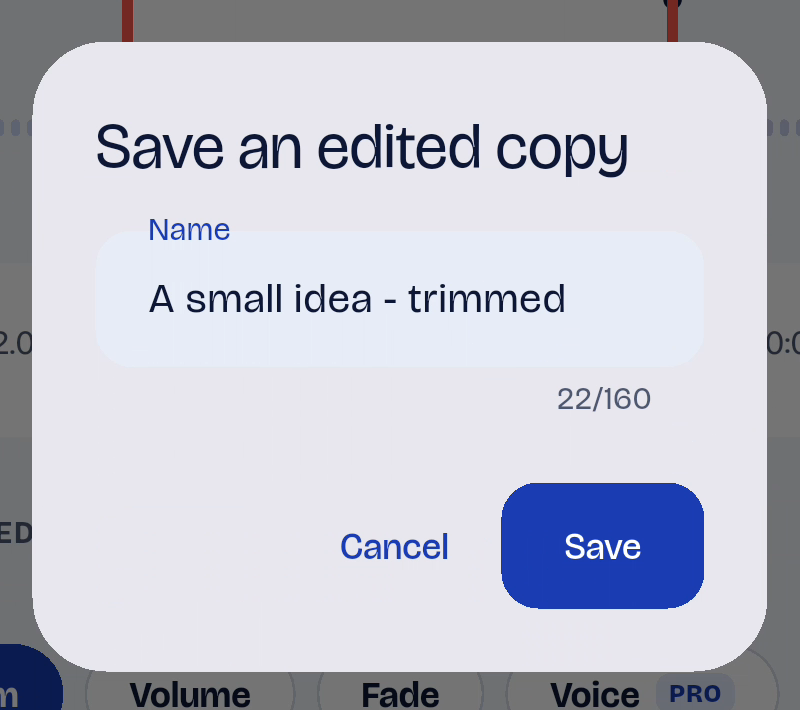
Tap Save copy, enter a name and confirm. Play the new WAV file from the library. To send it elsewhere, use Share or Export; the more-actions menu also offers Save to Files.
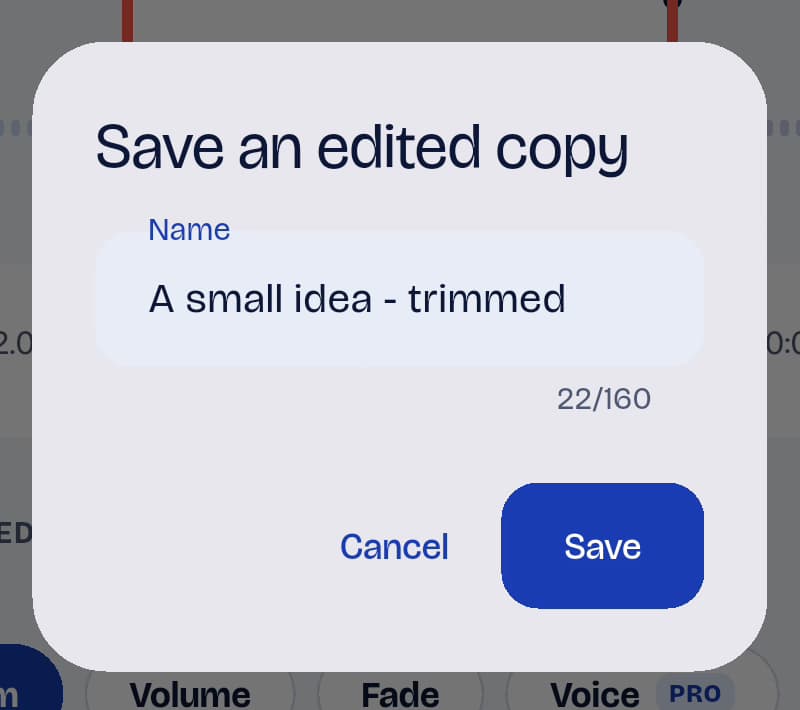
Android · TapeSailGive the edited copy a name, then tap Save. The original stays in the library. View larger
Trimming limits and saved copies
Can I remove a section from the middle?
Yes, in versions with the Cut tool. Trim keeps the passage between its boundaries; Cut removes a selected passage and joins the remaining audio. Choose Cut, mark the unwanted section and tap Remove section, then preview and save a free WAV copy. See the related Cut guide below. Cut requires an app version that includes it. If your older version has no Cut tool, a workaround is to save the parts before and after as separate trimmed copies, then merge them with TapeSail Pro.
What happens if I close the editor?
The latest draft is saved on this device so you can reopen the recording and continue editing. Undo and redo history lasts while the editor is open. The original file stays in the library when you save a copy.
What if my draft also contains a Pro effect?
Trim, volume and fades remain free. When offered, Save basic edits only saves those edits without the advanced effects and keeps the advanced draft for later.