Free · App update required · iPhone and Android
Remove a section from audio
In versions with Cut, open a recording, tap Edit and choose Cut. Mark the unwanted passage and tap Remove section to join the remaining audio. Compare Original and Edited, then save a separate WAV copy. Basic cuts are free, and your original recording stays in the library.
By TapeSail · Updated
Watch: remove a section with the free Cut tool
This Android development demo marks and removes a middle section, uses Undo and Redo, compares Original and Edited and saves a free WAV copy. Demonstrated on Android in a development build. These controls require the corresponding app update and may differ from your installed version.
Playing loads YouTube and shares data with Google. Privacy details.
Watch the demo on YouTubeHow to remove an unwanted passage
Open the recording and listen to Original
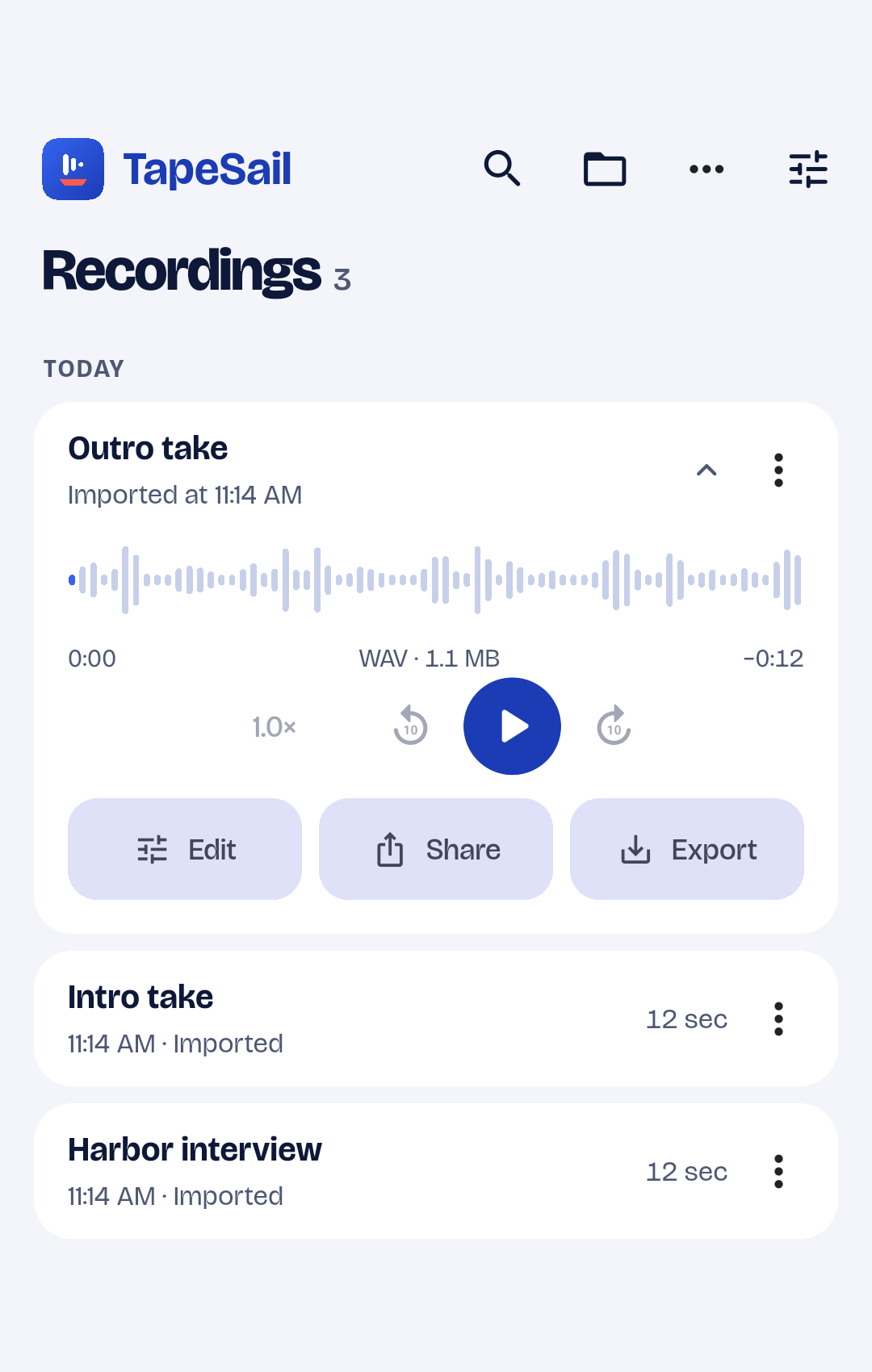
Expand the recording in the library and tap Edit. Choose Original and play the recording to find the passage you want to remove.
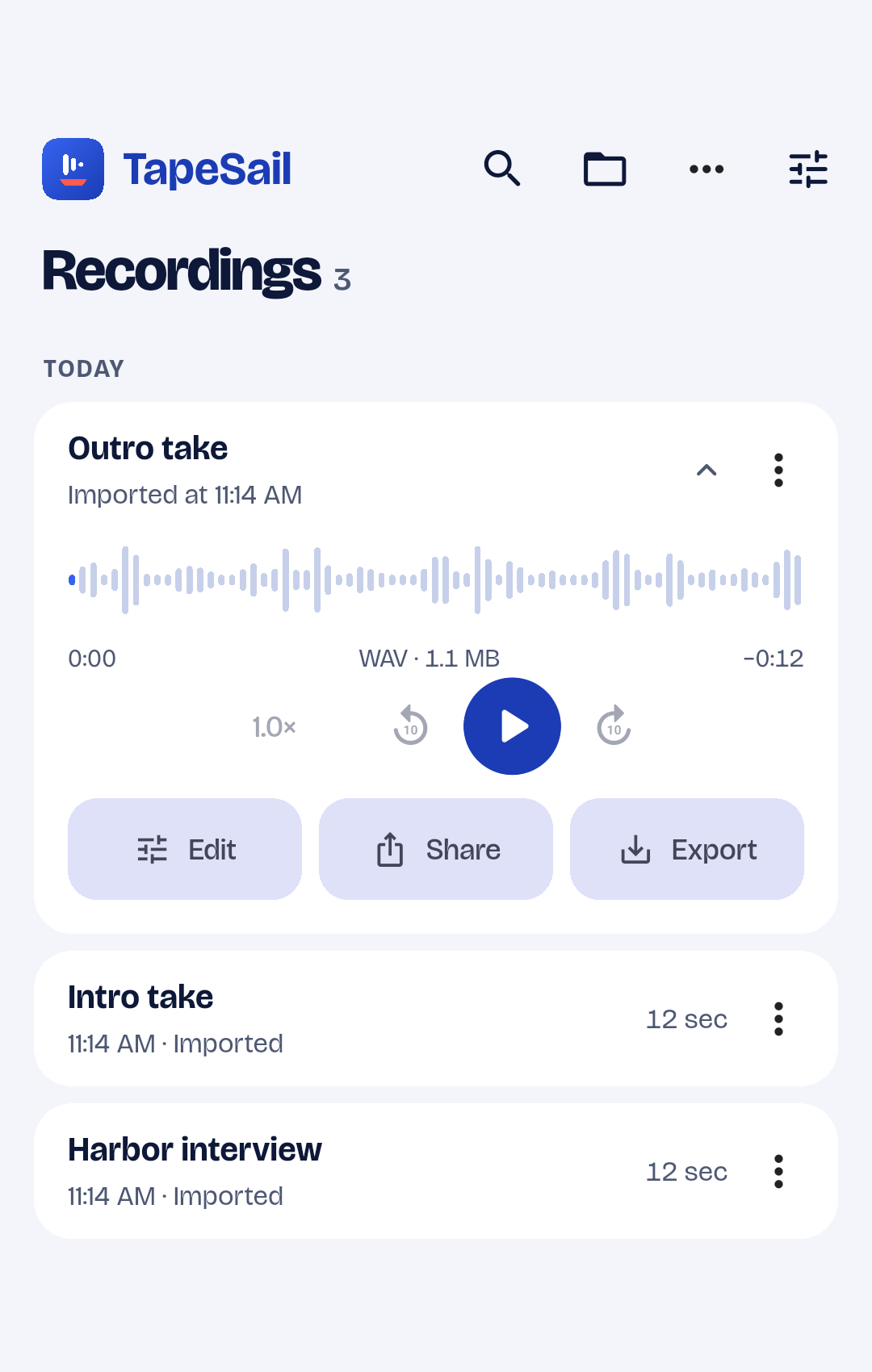
Android · TapeSailOpen Edit from an expanded recording. Shared library controls shown in the trim guide. View larger Choose Cut and mark the unwanted section
Choose Cut. Drag both waveform handles around the passage you want to remove. The selection marks audio to discard, rather than audio to keep. Listen carefully around the boundaries so you do not remove part of a word you need.
Remove the section
Tap Remove section to apply the cut. Marking a section alone does not remove it. Use Undo to reverse the change or Redo to apply it again while the editor is open.
Compare the original and edited audio
Choose Edited and play from before the cut through the join. Compare with Original to check that only the unwanted passage is gone. Undo and adjust the selection if the transition sounds wrong.
Save a separate WAV copy
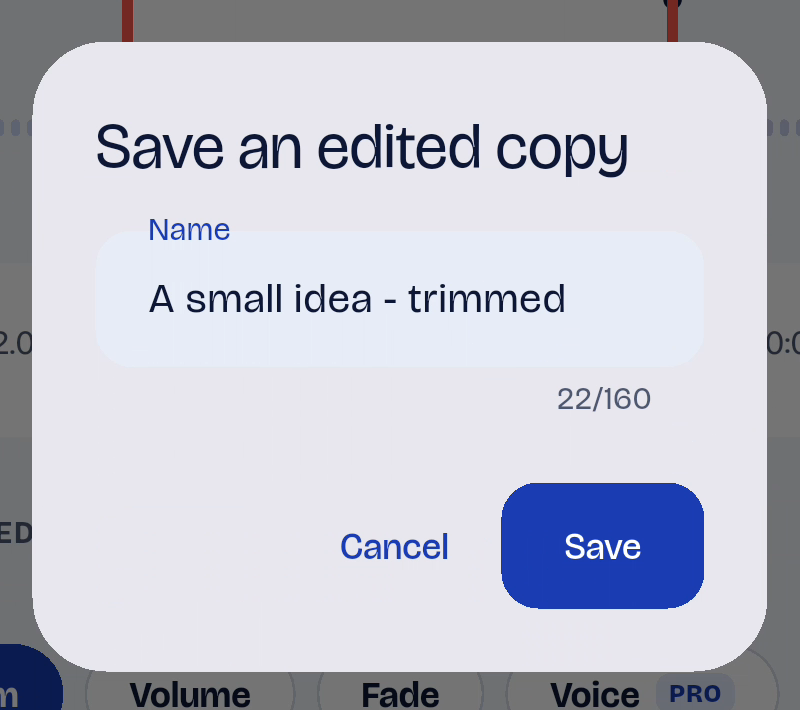
Tap Save copy, enter a name and confirm. Basic cuts are free. Play the saved recording from the library and listen across the join again. The original stays in the library. Use Share or Export on the saved copy; convert it to M4A afterwards if you need that format.
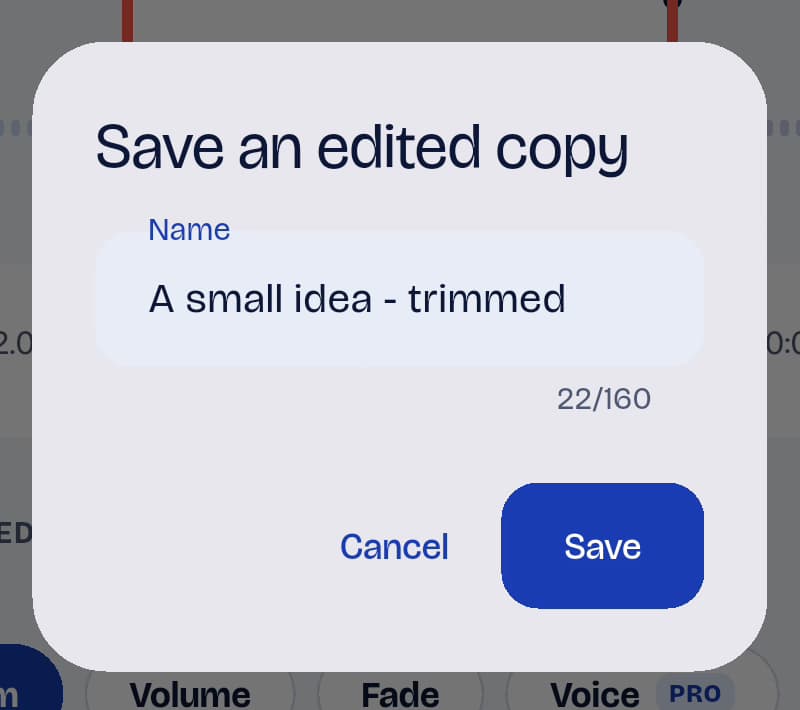
Android · TapeSailName and save the edited copy. Shared save dialog shown with a trimmed example. View larger
Cutting sections and checking the result
How is Cut different from Trim?
Trim keeps the passage between its start and end boundaries. Cut removes a marked passage and joins the remaining audio. Use Trim to shorten the beginning or ending, and Cut to remove an unwanted passage from the middle.
What if my app has no Cut tool?
The demonstrated controls require the corresponding app update; availability may differ by platform, app version and store. In an older version, you can save a trimmed copy of the part before the unwanted passage and another copy of the part after it, then merge those copies with TapeSail Pro. That workaround requires Pro for merging; the Cut tool itself is free in versions that include it.
Does Cut change the original recording?
Saving creates a separate WAV copy and keeps the original file. Undo and redo let you revisit edits while the editor is open. Check both the edited preview and saved copy before sharing.
What if the draft also contains a Pro effect?
Cut is a basic edit and is free. Saving advanced effects requires Pro. When offered, Save basic edits only saves the basic edits without the advanced effects and keeps the advanced draft for later.